We are talking here about WordPress installed on your own hosting. You do not need a WordPress.com subscription to follow this guide.
Preparing the installation
Sign in to your SaharaCloud account and check the status of your hosting. The panel becomes available when the service is active, after the payment has been confirmed and the hosting prepared.
Then choose the website’s address. If you already own a domain, you can use it by configuring its DNS. If it is registered elsewhere, you do not have to buy another one. The domain, DNS and hosting guide (in French) can help you understand the settings.
Keep an e-mail address you read close at hand and prepare a unique password for the WordPress administrator. Save it in your password manager.
Is a website already online on this domain? Back it up and prepare a test address before continuing. This also applies to a website published with Sahara AI: choose WordPress’s destination before changing what your visitors see.
1. Open your hosting panel
From your client area, open the hosting service concerned, then its control panel. If you have several services, take a moment to check the associated domain.
In the panel, display your websites and select the one on which you want to install WordPress.
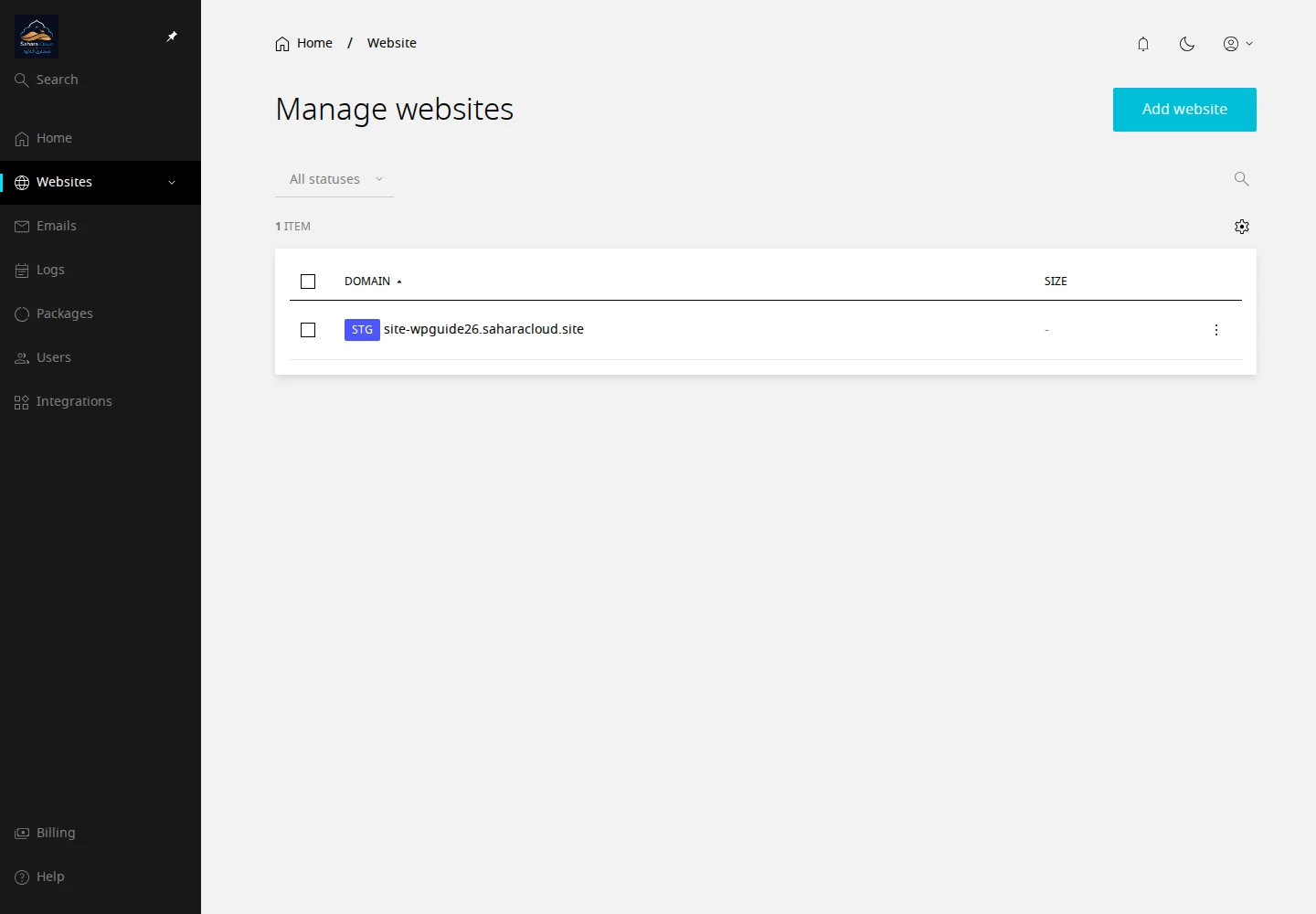
2. Start the WordPress installer
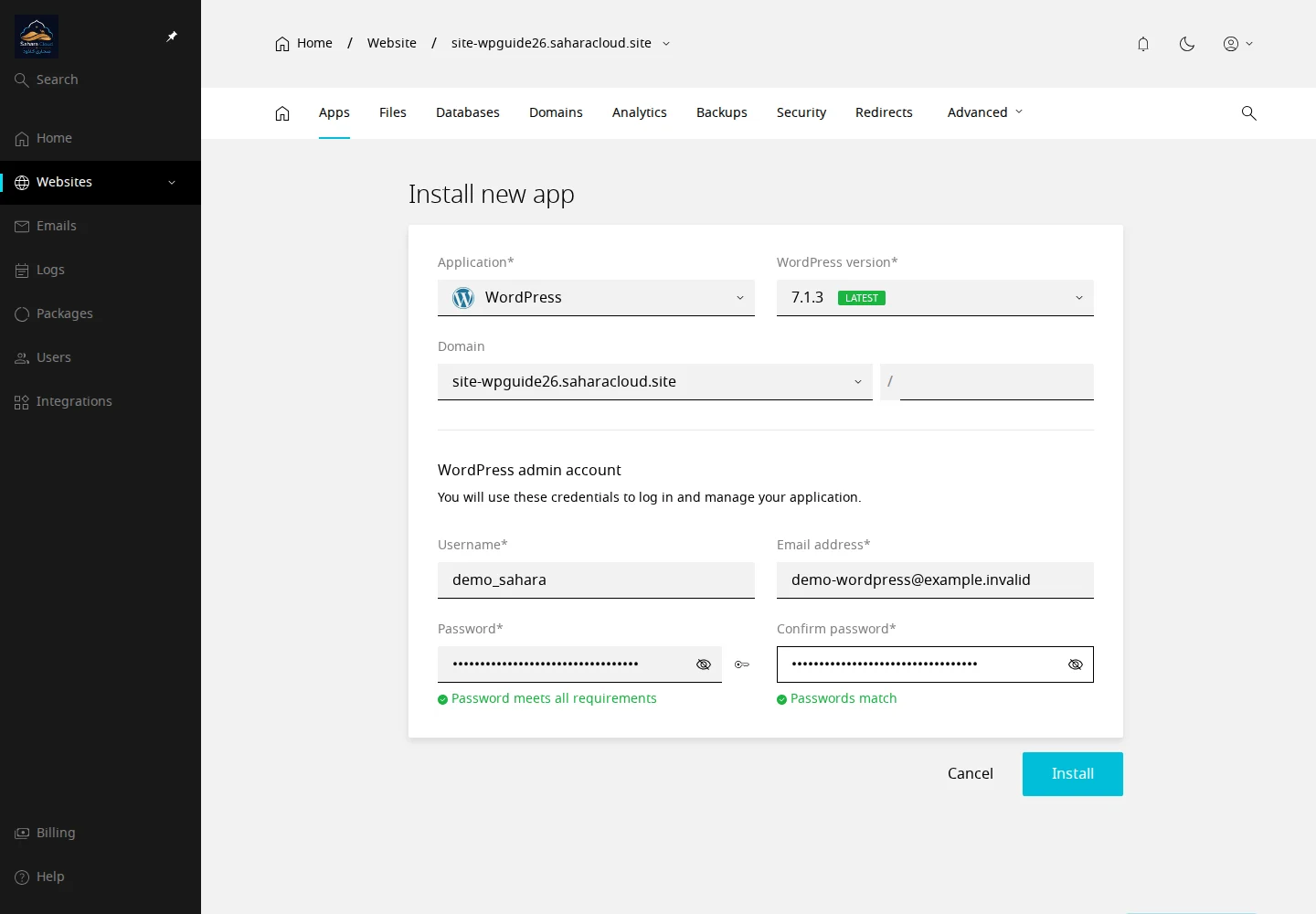
Open the website’s applications section, then choose to install WordPress. In the English panel, the path given by the vendor is Websites → your website → Apps → Install app. The panel documentation follows this path.
Fill in the requested information, including the administrator account. Double-check the e-mail address: you will need it to receive the website’s messages and recover your access.
Above all, check the domain and the destination folder. At the root, WordPress serves the main website. In a folder such as /blog, it will be reachable at that address. If the installer warns you about existing files, stop and find out what they are before replacing them.
When everything is ready, click Install to confirm the installation. If WordPress is not offered in your panel, contact SaharaCloud support with the service concerned: the installer should be available for your plan.
3. Open the website and check HTTPS
Once the installation is complete, open the website’s address in a new tab. Check that you reach the right website and that the browser accepts the HTTPS connection without a certificate warning.
Still seeing the old website? Does the domain not lead to the right place? Look at the DNS and the certificate status in your hosting. These settings may still be in progress even when the panel is available. If the error persists, support can help you find the cause.
4. Sign in to WordPress
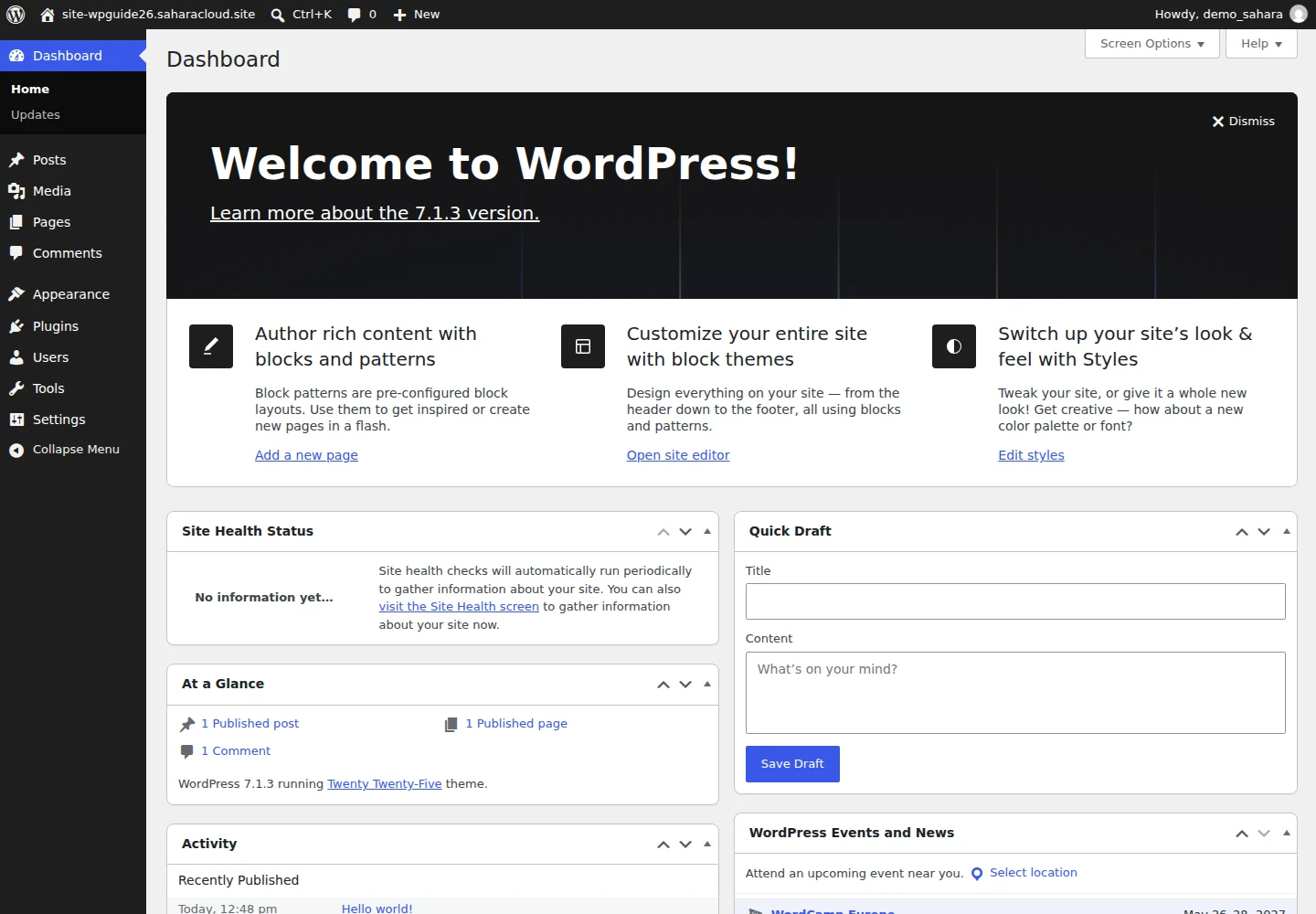
Use the administration link offered by the panel. For an installation at the root, the usual address looks like https://your-domain.tld/wp-admin/. It may be different if you chose a subfolder or customised the sign-in.
Sign in with the WordPress credentials set during the installation. They are separate from those of your SaharaCloud account.
You can now name the website, choose the language and set the time zone. Then prepare your first pages. For a craftsperson, that might be a presentation of their services, a few projects and a contact page.
If you want to show a static home page, choose it in the reading settings. The WordPress documentation shows where this option is.
5. Prepare the pages and try the contact options
Choose a theme maintained by its publisher, then add the plugins you need. You can enrich the website as your project moves forward.
Before sharing its address, open it on a phone and a computer. Try the menu, the links and the contact buttons. Also send yourself a message from each form and check that it arrives: it is the simplest test to know whether a visitor will be able to reach you.
If WordPress e-mails do not arrive, our WP Mail SMTP guide (in French) helps you configure sending.
Also take the time to find the backups and the restore procedure of your plan. For WordPress, you need to be able to recover both the files and the database. WordPress’s explanations on backups describe their role. Keeping themes and plugins up to date remains to be organised according to the support you have chosen.
6. Make the website ready for the public
Replace the demonstration text and contact details. In the reading settings, check again the option that discourages search engines from indexing the website if you turned it on during the work. This option only gives an instruction to search engines; a private website needs access protection.
You can then add your domain to Search Console to follow its indexing. Google will decide on its crawling and ranking over time.
If something gets stuck
| The problem | What to check first |
|---|---|
| The panel does not open | Is the service active in your account? |
| The installer reports files | Is there already a website in the chosen folder? |
| The domain shows another website | The DNS and the selected domain |
| The browser reports an HTTPS error | The certificate status |
| You do not receive the messages | The SMTP settings and sending errors |
When contacting support, give the service and the error message. A screenshot can help, as long as passwords are hidden.
Still looking for your hosting? See the SaharaCloud WordPress plans. To start instead from a description of your business and create your pages by conversation, you can also discover Sahara AI.